

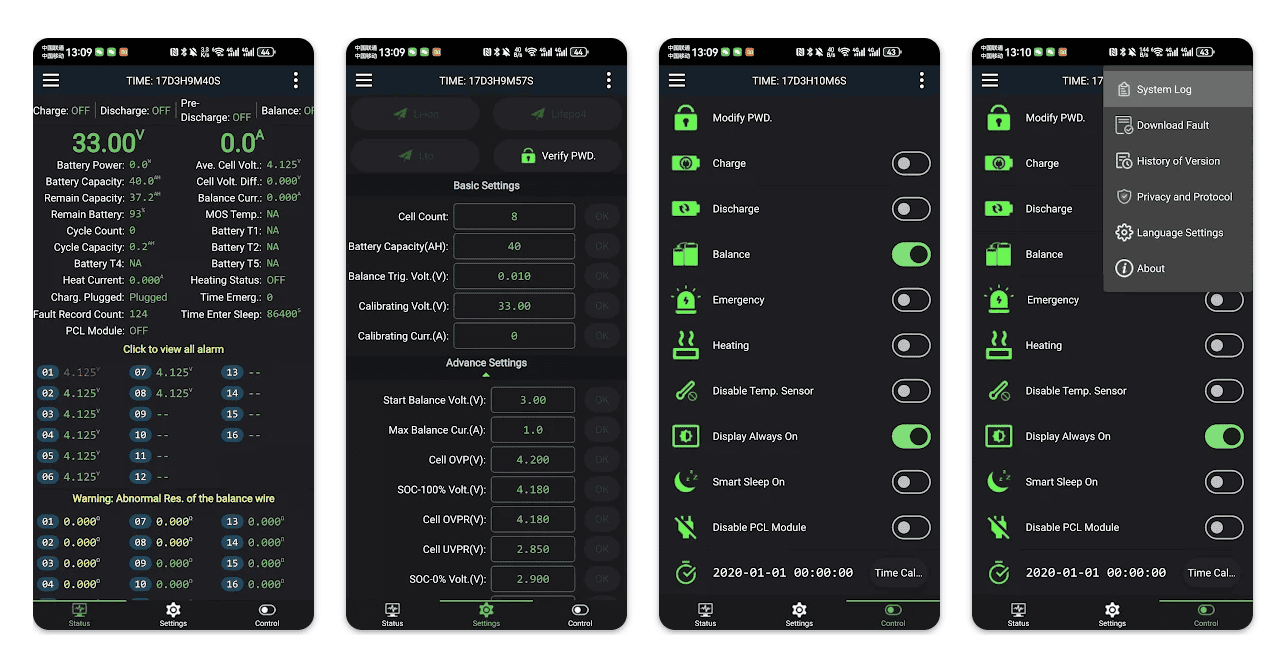
Here’s a brief guide to using the App for JK BMS based PowerPaul batteries (this does not apply to the “Lite” range). Our newer batteries including the Cub 2026 use the JK BMS, and more models will be transitioning to this BMS over time.
These batteries have a Bluetooth module installed to provide data regarding the internal status. For the majority of people this won’t need to be viewed much if at all, but it can be a very useful tool for fault finding your electrical system. It can show you if you are charging or discharging without the need for fancy test equipment. It can also show you if there’s an appliance turned on that you may not have realised.
The JK BMS App is easy to use. It’s a bit more data oriented than some other apps out there, but it gives you everything you need, especially during set up or fault finding. If you want to know more about what a BMS does, check out our BMS fundamentals page.
There are apps for each operating system (Android and iPhone). Some app features change over time and this has caused confusion with some customers. So please avoid updating the app unless you really need to. The old saying “if it ain’t broke, don’t fix it” is appropriate here.
Using these apps requires various phone permissions. Please ensure you enable Bluetooth and Location to ensure it works correctly. Failing to enable these may result in the app not being able to connect to your battery. For Android users in particular, GPS/Location must be turned on or the app won’t find your battery.
Note: Batteries are compatible with the version of Bluetooth app working at the time of production. Future app updates are not guaranteed to work with your model of battery.
IMPORTANT: NEVER CHANGE ANY SETTINGS WITHIN THE APP WITHOUT SPECIFIC ADVICE DIRECTLY FROM POWERPAUL AUSTRALIA. DOING SO MAY CAUSE DAMAGE AND/OR VOID YOUR WARRANTY.
Connecting to your battery
- Enable Bluetooth and Location/GPS on your phone.
- Open the JK BMS app.
- Tap “Scan” to find available devices.
- Select your battery serial number from the list.
- Enter the connection password: 1234
Important: Do not try to pair your phone with the BMS through your phone’s Bluetooth settings. Always scan and connect through the JK BMS app itself.
If your battery doesn’t appear in the scan, try turning your phone’s Bluetooth off and on again, then scan once more. In some cases, briefly connecting a charger to the battery for a couple of seconds, or pressing the physical power button, can wake the BMS if it has gone into sleep mode.
If you’re still having trouble, please read through our FAQs or contact us directly.
For Android users
The official JK BMS App on this link: https://play.google.com/store/apps/details?id=com.jktech.bms
Requirements: Android 6.0 or higher.
For iPhone users
The official JK BMS App (search for “JK BMS” in the App Store) on this link: https://apps.apple.com/au/app/jk-bms/id1425725691
Requirements: iOS 17 or higher.
More information
For the full JK BMS instruction sheet, visit our Resources and Guides page.
If your battery uses the older Daly BMS, see our Daly BMS App Options page instead, along with the Daly BMS App Usage and Fault Finding guide.






Great battery Fantastic Service & Very quick shipping a shame all Australian Companies cant give the same amount service . Thank you Pual
I brought the nifty + 345 ah what a great battery so well made I will only buy Powerpaul batteries from now on. Can’t beat his gear
Great to talk to Paul, the owner operator of the business, he also builds lifpepo batteries in his factory, highly recommend
great price
great price