Charging your PowerPaul Australia battery to 100% SOC is simple, but as with most things controlled by a computer, it’s logic based so you need to ensure certain things happen.
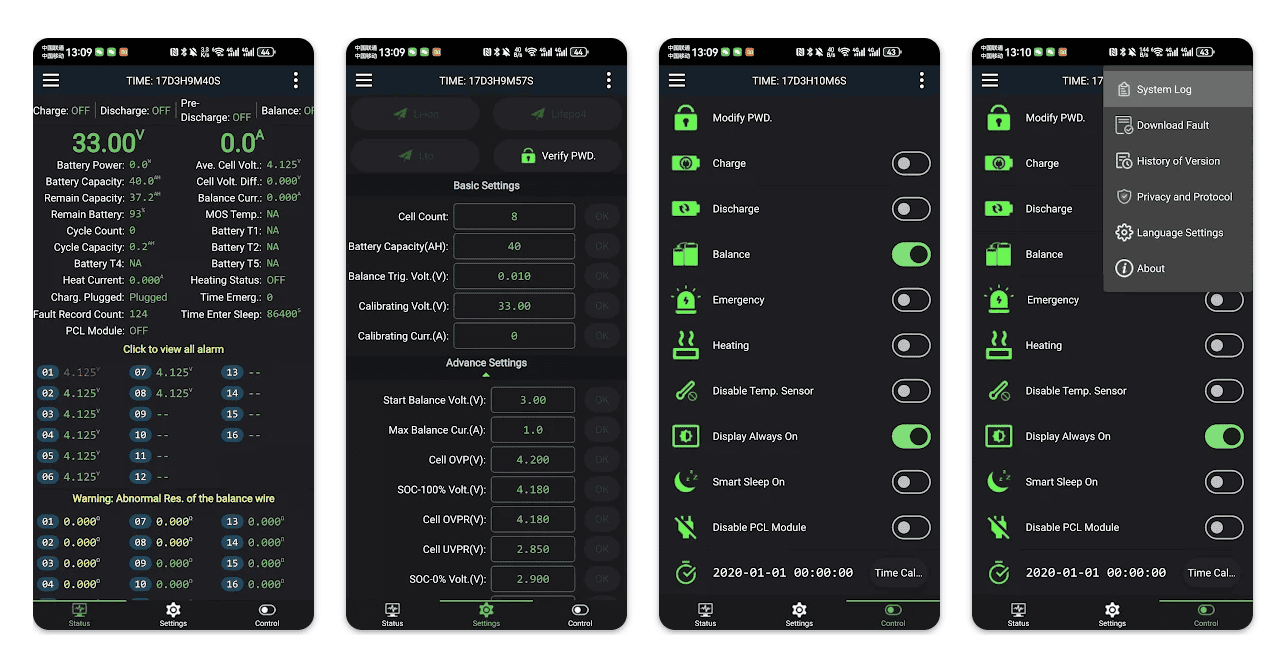
First of all it must actually be charging. That means current must be flowing into the battery. You can check by going into the battery App and it will be shown in the “current” field. If this is 0.0A then you are not charging. If it is showing a negative figure, you are discharging.
If your charger is showing that it’s putting out 10A, but the battery shows -5.0A, this means a device is draining 15A.
To achieve 100% SOC, the “sum volt” figure must be 14.1v or higher. If this figure is 14.0v or below, it’s not fully charged yet.
If the Chg MOS indicator is Off, then it can mean there’s an error of some sort. This could be the temperature being too hot or too cold. The charge current may have gone over the allowable limit, or there could be a cell imbalance. In any of these cases, press and hold the button on the battery until the lights turn off, then wait 5 seconds and press the button again. This will reset the error code. If the fault persists, check for wiring issues, if it still persists contact PowerPaul.