Here’s a brief guide to using the App for Daly based PowerPaul batteries (this does not apply to the “Lite” range). App features can change over time due to it being produced by Daly, therefore the operations may change without notice. We recommend that you do not update the App unless there’s an issue with operation. Please read the below steps fully before contacting PowerPaul.
Go to this post to obtain the App from your App store… https://powerpaul.com.au/blog/app-options-for-powerpaul-australia-daly-bms-batteries/
Also note that if the App is not responding or cannot find your battery, you DO NOT need to uninstall and reinstall the App, it will be very unlikely to resolve any issues.
There are very slight differences between the layout and wording of the Android v’s Apple App, but we’re confident you can figure it out.
When you install the App the first time, you must ensure Location services are allowed and turned on for the device. You must also accept all the permissions it requests, if you deny any of them, the App won’t work properly. Don’t worry, we’re not spying on you.
*** IMPORTANT: NEVER CHANGE ANY SETTINGS WITHIN THE APP WITHOUT SPECIFIC ADVICE DIRECTLY FROM POWERPAUL AUSTRALIA. DOING SO MAY CAUSE DAMAGE AND/OR VOID YOUR WARRANTY ***
Open the App and the following screen will show up. Select “Local monitoring” to connect via BT. We do not have remote monitoring functionality at this stage.

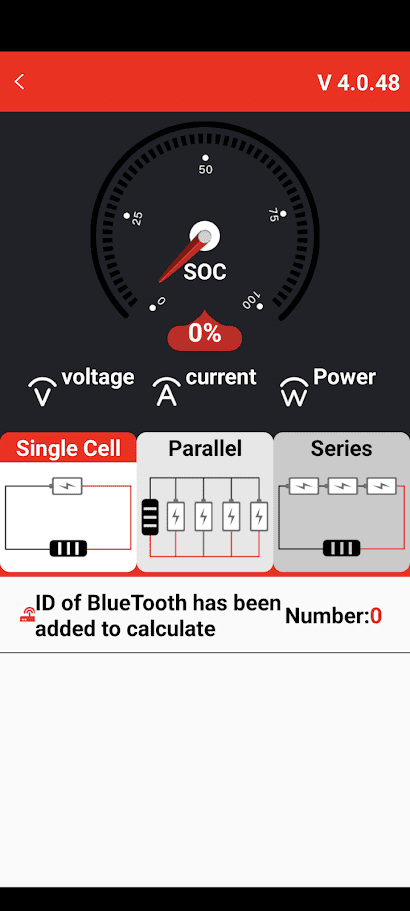
On the next screen you have an option to select “Single Cell”, “Parallel” or “Series”. We recommend selecting “Single Cell”. If you select “Parallel”, you will see averaged results from all selected batteries but we find this less useful usually.
The next screen will show you a list of available devices (batteries) to connect to. Press on the Serial Number (or BT number ‘DL-xxx…) to select the battery you wish to connect to.
If your battery is not showing, go back and select “Parallel” mode, then go back again and select “Single cell” again. This sometimes forces a refresh of the list.
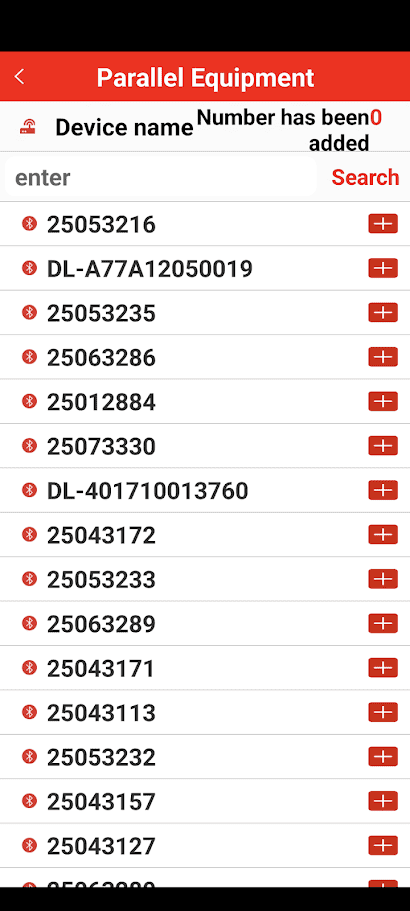
The red [ + ] should change to a grey [ – ] . For some versions it will connect immediately, and for others you may need to press the Serial Number again to get to the next screen.
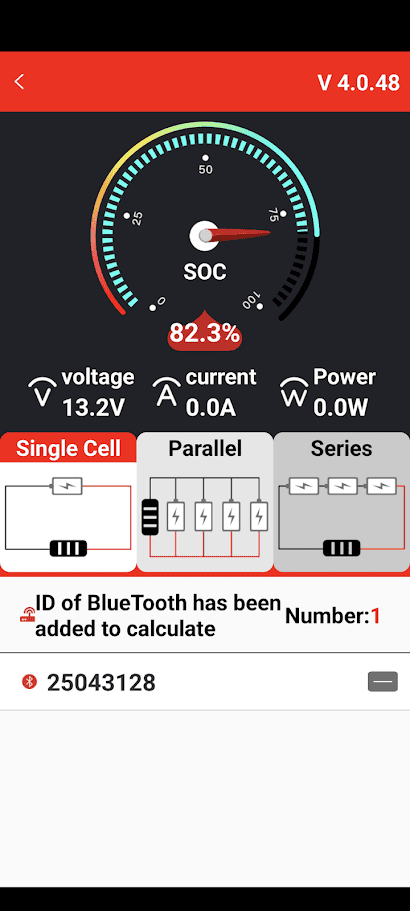
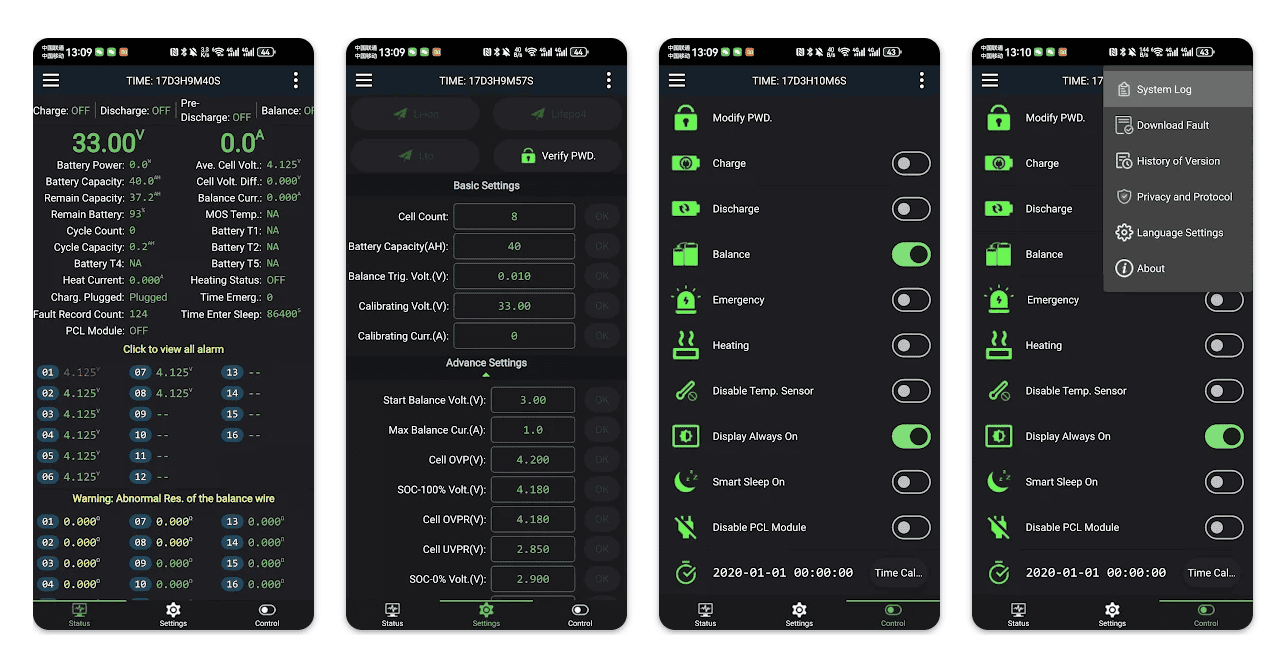
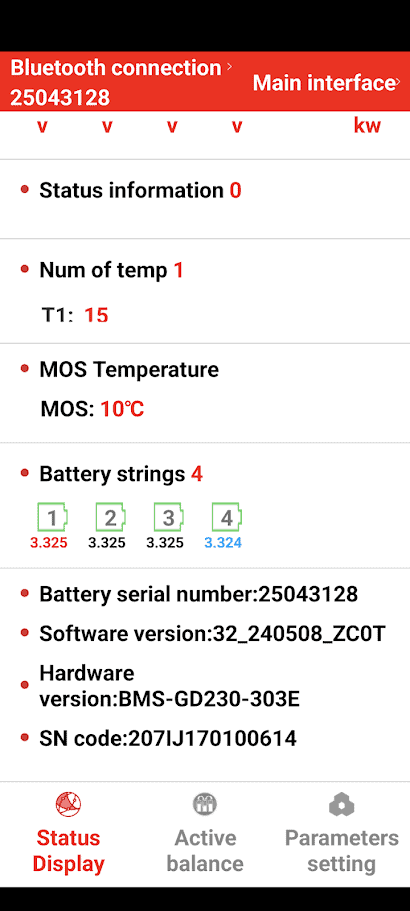
On the following screen you will see the following screen (scroll down to see full info).
The upper half of the screen shows your State Of Charge, Voltage, Current (In or Out), Remaining capacity, and various other battery statistics.

On the lower half of the screen you will see Temperature readings (MOS Temp is not enabled for this BMS), Status information, Cell voltages and battery version information.
If there’s a warning shown in the Status information, don’t panic, it’s normal. These are not normally faults as often shown, they are trigger points for the BMS to do certain things.
If the Cell voltages are not being shown, it means your BMS is locked with a password. The default password for older batteries is “123456”, however batteries for the past 2 years may have been set with your invoice number as the password, or if you have purchased through an installer, consult them for your password.
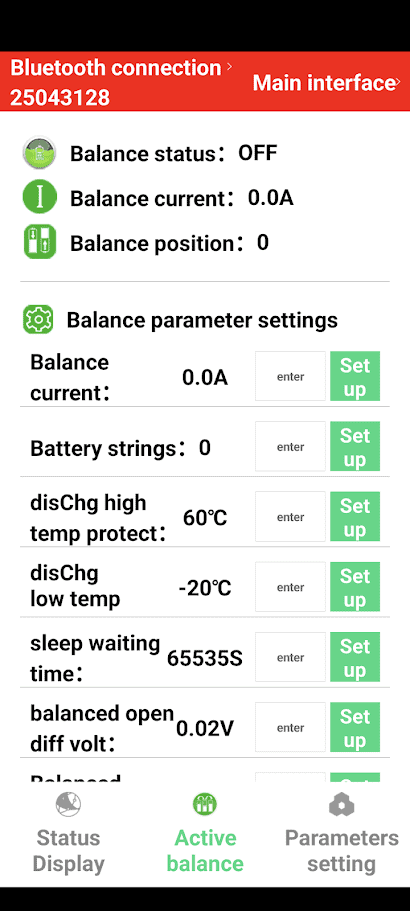
The Active balance screen is not used for PowerPaul batteries, disregard this screen completely.
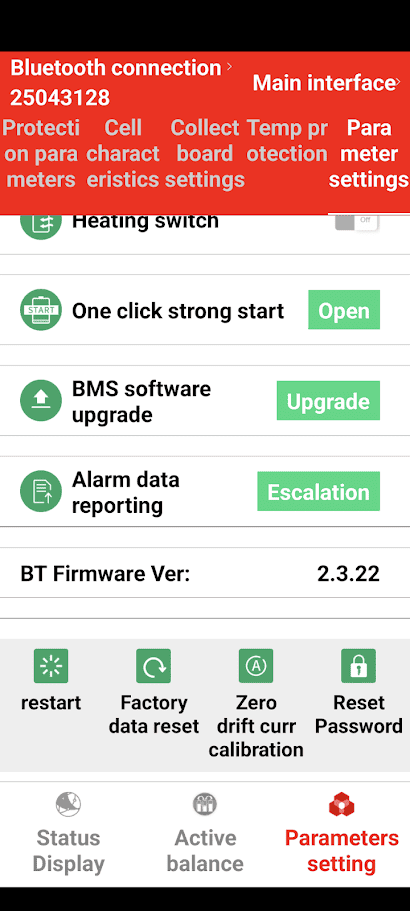
The Parameter setting function should only be used under advice from PowerPaul Australia. Changing settings may cause damage and/or void your warranty. While there are options to turn the Charge and Discharge circuits On and Off, we recommend that disconnecting your battery during service or storage is done with a physical switch.
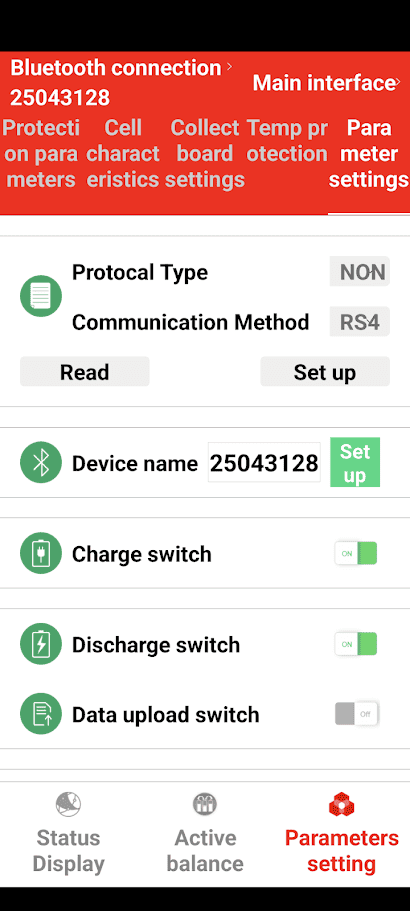
The lower half of the Parameter setting screen has an option for a software upgrade. If you have already done the upgrade, you do not need to do it again. See this page for more info… https://powerpaul.com.au/powerpaul-battery-daly-software-upgrade/
You may also reset the password if you desire.
The Restart function does exactly that, it will restart the BMS in the event of a fault if required, this can also be done by holding the button on the battery for 4 seconds until the display turns off, wait 5 seconds and momentarily press the button again.
DO NOT perform a factory reset, this will set the battery to Daly defaults which are not correct for PowerPaul batteries.